Sample Files

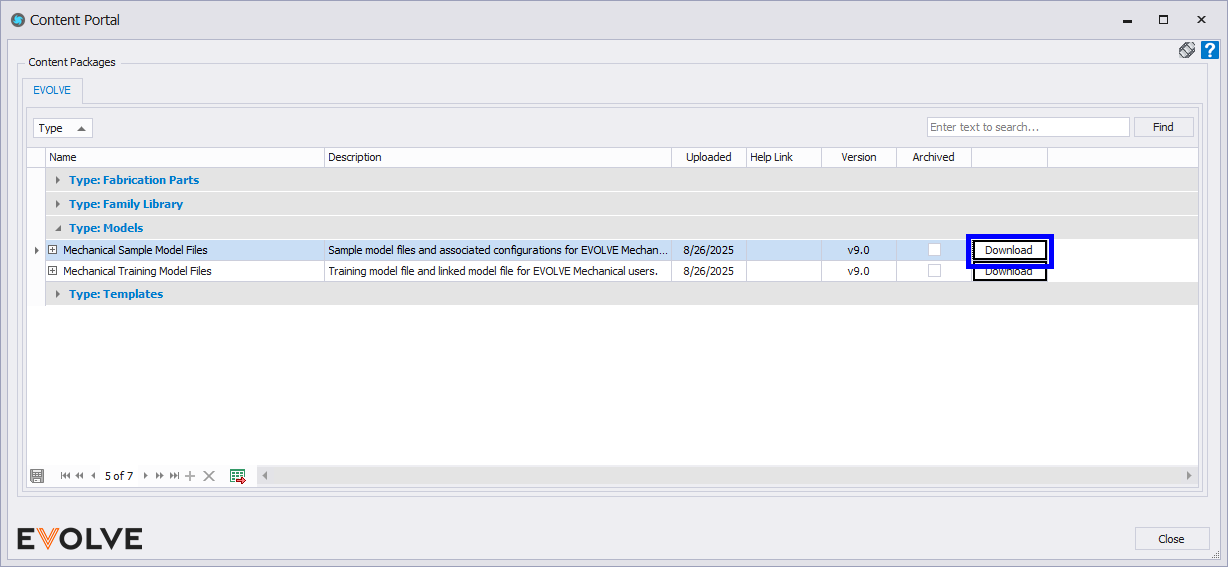
Sample models can be found either HERE or in the Content Portal. You will need to be an admin on Foresite to access these downloads. If you are unable to download these files please contact your company admin. If you do not know your company admin contact Support.
The EVOLVE sample models are intended to be used as examples of: various families, configurations, utilities, scripts, etc. to provide new and existing users concepts of how EVOLVE tools can be utilized.
Download Instructions
The Mechanical Sample Model Files contain files and folders that need to be downloaded to a directory on your computer. The default download location is C:\Temp. However, due to restrictions that may be placed on certain locations of your computer, you may have to download the sample files to a different location. If you must save to a different directory, please read the Importing Configurations PDF for information on how to change the Report File Path.
To extract files:
- In the Resources panel in the EVOLVE Mechanical tab select Content Portal.
- Select the arrow next to Type: Models.
- Locate the line labeled "Mechanical Sample Model Files" and select Download at the right end of the line.
- From the Browse For Folder window, navigate to the desired location and click Select Folder.Saving to C:\Temp is preferred, if you are unable, the Report File Path must be updated for the reports to work.
UPDATE NOTICE
NOTICE: Due to name changes to existing reports, older report names will persist in models using previous versions. To avoid unnecessary issues, EVOLVE recommended deleting or renaming the existing 'eVolve' folder (sample files) before extracting the new eVolve-Sample-Files.zip file to prevent multiple report entries.
EVOLVE Mechanical's Report Name Changes
Previous Report Name | New Report Name |
Trapeze Report | Supports - Trapeze Report |
Duct Weight Report | Duct Weight Report |
RectangularStraights | Duct Rectangular Straights |
BOM | BOM for Mechanical |
Duct FittingOrderDetails | Duct Fitting Order Details |
ITM_Hangers | Supports - ITM Hangers |
Pipe_BOM | BOM for Pipe |
DuctRnd_BOM | BOM for Duct Round |

Updating an existing model's report configuration
IMPORTANT: Before importing new report configurations that use eVBatch files from the 1.0.5 sample
files or higher, delete older report entries, as changes to the report name will cause
multiple entries. Please use the list in the UPDATE NOTICE section above to determine which
report files to delete.
- From Revit while in the desired project, the Configuration Exchange.
- From the Configuration Exchange window, click Import Data.
- From the Import Data window, navigate to the location where the "Sample Files" were extracted; for these instructions, we'll assume the files were extracted to C:\Temp. So, within the Temp folder, we'll navigate to 'eVolve\eVolve Reports\Report Files', select the desired configuration, and click Open.
- From the Configuration Exchange window, select all rows and click Import Selected.
- From the Import Data window, click OK.
- From the Configuration Exchange window, click OK.
- From the Configuration Exchange window, click OK.
- From the Report Manager, click Ok to close the window or Apply to start reviewing a report.
TIP: to correct multiple report entries, simply delete the entry or entries that are no longer needed. Use
the list in the UPDATE NOTICE section above to determine which report files to delete.
